
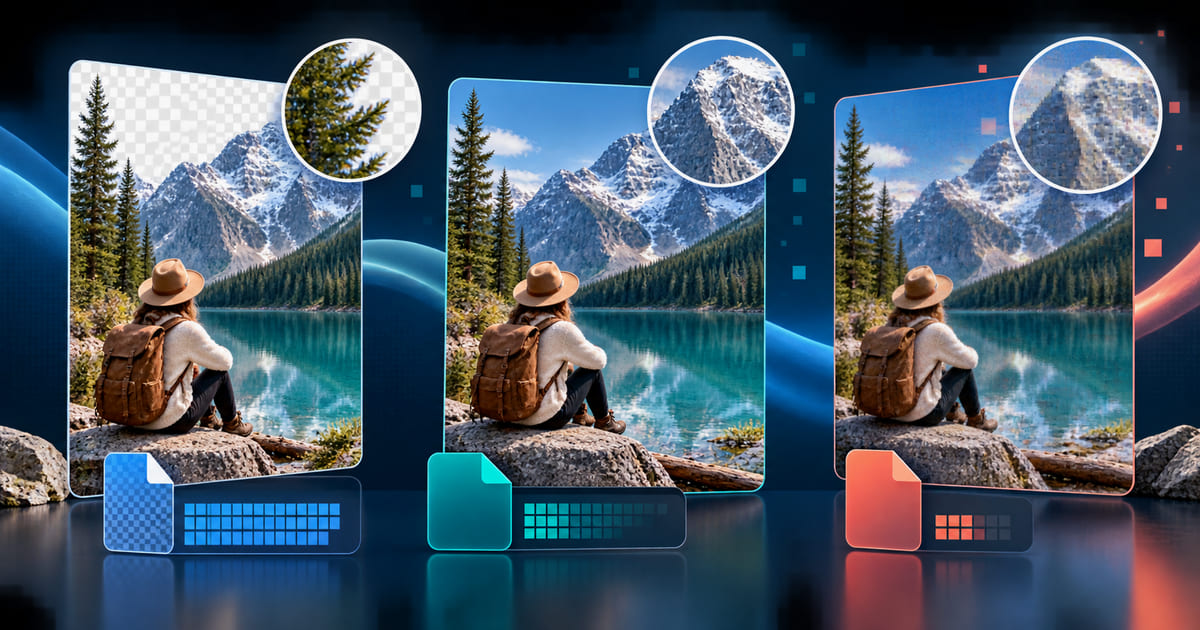

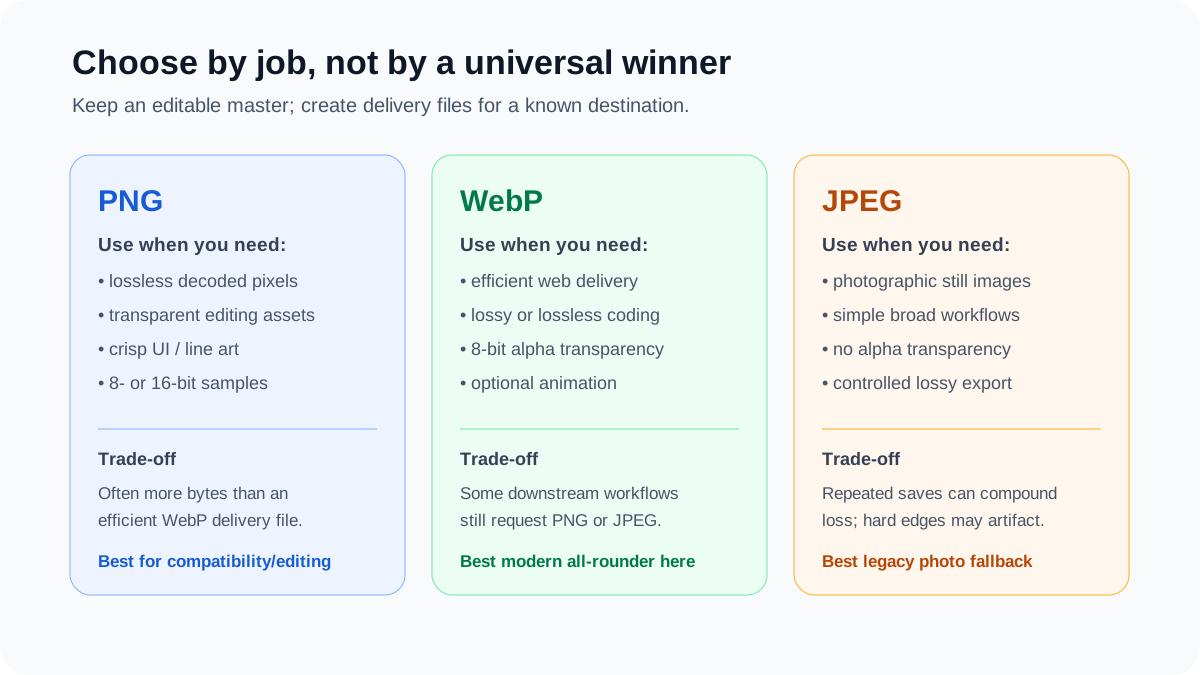
PNG, WebP and JPEG solve different jobs. PNG is a dependable lossless editing and compatibility format. WebP is a flexible delivery format that can be lossy or lossless and can include transparency or animation. JPEG remains a practical photographic still-image format when broad, uncomplicated compatibility matters and alpha transparency does not.
Last reviewed: August 13, 2026. Format properties were checked against current W3C, Google and MDN documentation. Original size and fidelity observations use the published WebP to PNG Synthetic Benchmark v1.0 and are limited to that corpus.
The short answer: choose for the destination
| If your main requirement is… | Start with… | Why |
|---|---|---|
| Transparent asset for editing or a workflow that explicitly requests PNG | PNG | Lossless raster storage, full alpha options and broad tool acceptance |
| Efficient modern web delivery with optional transparency | WebP | Lossy and lossless modes, 8-bit alpha and wide current browser support |
| Ordinary photographic still with a legacy-friendly workflow | JPEG | Simple, established lossy photo delivery without alpha |
| Pixel-precise UI, diagrams or line art | PNG or lossless WebP | Avoids new lossy ringing around hard edges; test which is smaller |
| Animated raster image | WebP, APNG or AVIF | PNG and JPEG still-image workflows are not the whole animation decision |
That table is a starting point, not a law. A tiny palette PNG can beat a poorly configured WebP. A high-quality JPEG can be the right fallback even when a newer format is smaller. A lossless WebP can preserve decoded pixels yet fail an upload form that accepts only PNG or JPEG. The right choice is the file that meets the visual, functional and compatibility requirements at an acceptable byte size.
PNG: lossless storage, alpha and editing compatibility
PNG uses lossless compression: decoding a conforming file recovers the encoded PNG image samples without the transform artifacts associated with lossy photo compression. It is especially useful for interface graphics, screenshots, line art, diagrams, logos that must remain raster, and assets with transparent or partially transparent pixels.
The current W3C PNG Specification (Third Edition) defines greyscale, truecolor, indexed-color and alpha-bearing forms. Allowed sample depths depend on the color type. Truecolor and truecolor-with-alpha PNG can use 8- or 16-bit samples; indexed PNG uses palette indexes of 1, 2, 4 or 8 bits with 8-bit palette samples. Therefore, “PNG is 24-bit” or “PNG has only 256 transparency levels” is too broad.
PNG’s trade-off is size. Its lossless compression can be efficient for repeated colors and crisp shapes, but decoded photographs or textures may require far more bytes than a purpose-built lossy delivery file. PNG is not automatically the highest-quality choice either: exporting an already damaged JPEG as PNG preserves the damaged decoded image; it does not recover the original camera data.
WebP: one container with lossy, lossless, alpha and animation
WebP supports lossy and lossless image coding. Its extended container can also carry an ICC profile, EXIF or XMP metadata, an 8-bit alpha channel and multiple animation frames, as documented in Google’s WebP container specification. This range makes WebP useful for modern web delivery, but it also means the extension alone does not tell you whether a particular file is lossy, lossless, transparent or animated.
WebP is an 8-bit-per-channel format in the ordinary RGBA sense described by its specification. It should not be presented as a 10-bit or 12-bit alternative to high-bit-depth PNG or AVIF workflows. If a source depends on more than 8 bits per channel, test the full export and display chain rather than assuming a “lossless” WebP retains that precision.
Google reports two widely repeated averages: its lossy study found WebP files 25–34% smaller than JPEG at equivalent SSIM points, and its lossless/alpha study reported about 26% smaller files than PNG. These are results from Google’s documented datasets, encoders and comparison methods—not universal discounts that can be applied to any file. The lossy WebP study describes the Kodak and Tecnick image sets and SSIM-based procedure. Always retain that scope when citing the numbers.
JPEG: still-photo efficiency and simple compatibility
Common web JPEG is a lossy still-image format built for continuous-tone imagery. It can reduce photographic files efficiently, but stronger compression can introduce blocking, ringing, color smearing and loss of fine texture. It does not provide ordinary alpha transparency, and the standard web use case is not animation.
JPEG is often a poor match for screenshots, small text, diagrams or sharp interface edges because those features make compression artifacts easy to see. It remains useful for photographic stills, email and document workflows, older content systems, and destinations that explicitly request a JPEG. The maintained MDN image-format guide recommends JPEG for lossy still images and PNG when more precise reproduction is needed.
Repeatedly opening and saving a JPEG can compound loss. Keep an original master and generate the delivery JPEG once at the intended dimensions. Changing JPEG to PNG before another edit does not undo past loss, but it can prevent the PNG stage from adding another lossy JPEG generation.
Original data: how much larger was PNG than WebP?
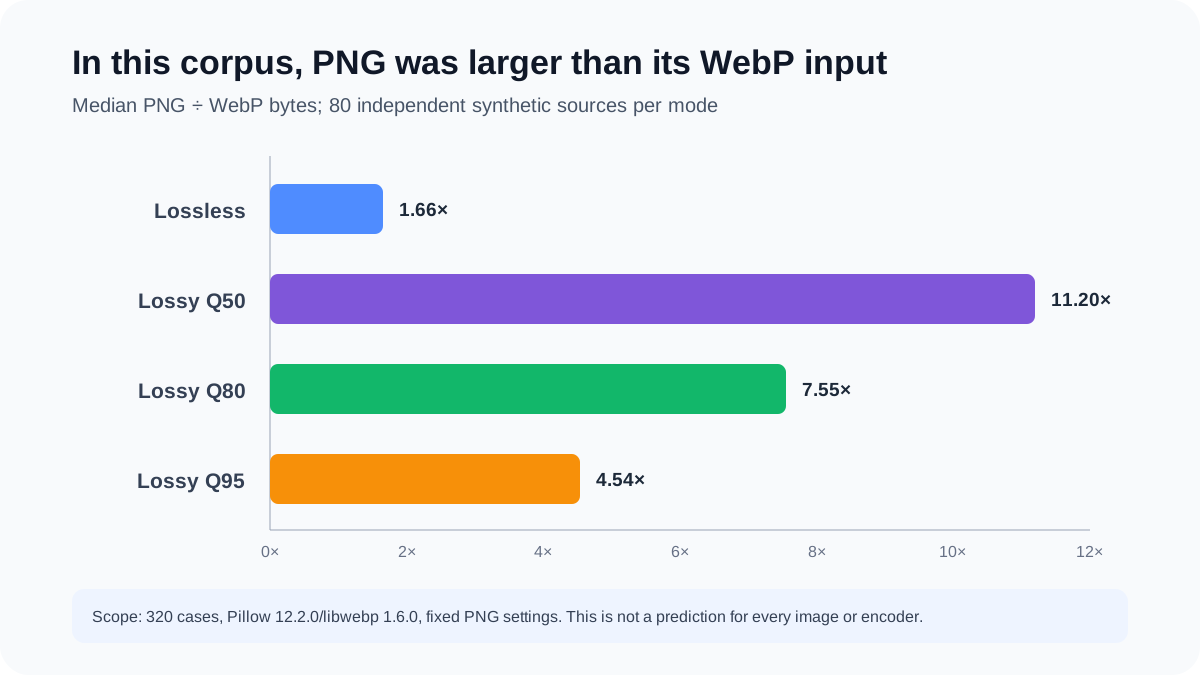
Our published benchmark asks a narrow conversion question. It contains 80 deterministic synthetic RGBA images in five categories and two resolutions. Each source was encoded into four WebP modes: lossless exact and lossy qualities 50, 80 and 95. Pillow 12.2.0 with libwebp 1.6.0 decoded each WebP and wrote a fixed PNG export, producing 320 conversion cases.
| WebP input mode | Cases | Median PNG ÷ WebP | 95% bootstrap interval |
|---|---|---|---|
| Lossless exact | 80 | 1.66× | 1.65×–1.89× |
| Lossy Q50 | 80 | 11.20× | 6.77×–14.13× |
| Lossy Q80 | 80 | 7.55× | 6.55×–11.28× |
| Lossy Q95 | 80 | 4.54× | 3.98×–7.86× |
The large ratios for lossy inputs do not mean PNG is inefficient at “the same quality.” The conversion preserves the already decoded lossy pixels in a lossless container; it does not re-create the compact lossy representation. That is why a small lossy WebP can expand sharply when written as PNG. The result answers a conversion question, not a rate-distortion contest between independently optimized PNG, WebP and JPEG exports.
The full benchmark report publishes every case, timing trial, environment detail, checksum and limitation. JPEG and AVIF were not part of that experiment, so the results must not be used to rank them.
Separate original JPEG, PNG and WebP export test
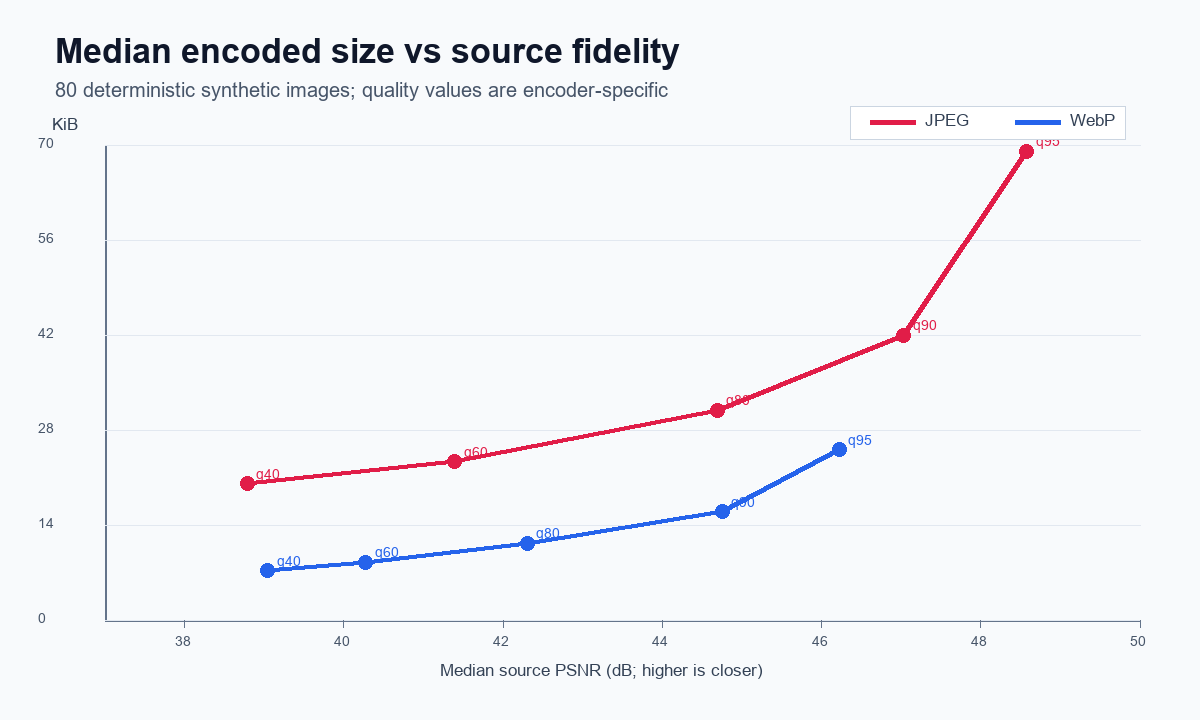
A second research pack compares independently encoded delivery files. The same 80 synthetic sources were first composited over #EFF3F8 so JPEG, PNG and WebP received identical opaque pixels. It contains 960 encodes: PNG level 6; JPEG qualities 40, 60, 80, 90 and 95 with 4:2:0 subsampling; WebP qualities 40, 60, 80, 90 and 95 plus lossless-exact WebP.
| Encode | Cases | Median size | Median source PSNR |
|---|---|---|---|
| PNG lossless | 80 | 110.9 KiB | Exact |
| WebP lossless exact | 80 | 71.5 KiB | Exact |
| JPEG Q80, 4:2:0 | 80 | 30.9 KiB | 44.7 dB |
| WebP Q80 | 80 | 11.3 KiB | 42.3 dB |
Download the research pack with raw rows, samples, settings and checksums. A defensible conclusion is that results varied with content and settings—not that one format wins every image.
Content type changes the outcome
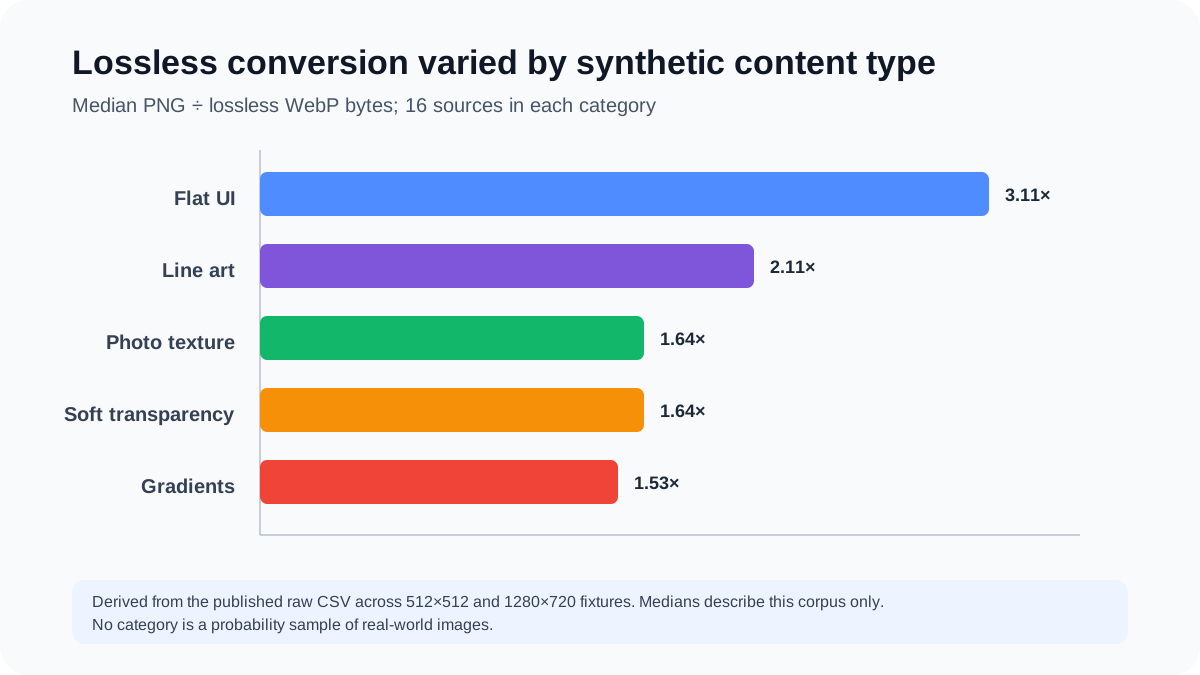
This variation is why “format A is always smaller” is not a useful rule. Dimensions, color count, noise, transparency, encoder version, effort level and metadata can all change the result. A decision should be based on representative files from the real project, encoded with documented settings.
A production workflow that avoids format mistakes
- Preserve the master. Keep the layered design, camera original or highest-precision archival source. Do not use a delivery derivative as the only master.
- Set final display dimensions. Resizing a 4000-pixel image with CSS does not remove the download cost of the extra pixels.
- Identify required features. Decide whether the destination needs alpha, animation, high bit depth, an ICC profile or specific metadata.
- Create two or three candidates. For a photo, compare a controlled JPEG with WebP; for crisp transparent UI, compare optimized PNG with lossless WebP.
- Inspect at actual size and zoomed. Look for ringing around text, gradient banding, texture loss, color shifts and alpha halos over light and dark backgrounds.
- Measure bytes after metadata decisions. Compare the files that will actually ship, not a screenshot of an export dialog.
- Test the destination. A CMS, marketplace or social service may recompress, flatten or reject a format after upload.
When converting WebP to PNG is the right move
Convert when an editor, presentation, document system or upload field accepts PNG but not WebP; when you need a static transparent raster for continued work; or when you want a lossless copy of the currently decoded WebP pixels. Expect the PNG to be larger in many cases, especially when the WebP is lossy.
The browser-based WEBP to PNG converter accepts up to 20 files per batch and 50 MB per file. Supported images are processed locally, and supported alpha is retained. Conversion can remove metadata and cannot restore information discarded by the source encoding, so keep the WebP and review color-critical output.
Common format myths
“WebP is always the smallest.”
No. Google’s own WebP FAQ notes situations in which a WebP can grow larger than its source. Compare actual exports. “Smaller at equivalent quality” also requires a defined quality method, not two unrelated slider numbers.
“PNG has better quality than JPEG.”
PNG avoids adding a lossy JPEG generation, but quality depends on the source. A PNG made from a heavily compressed JPEG keeps the JPEG artifacts. It is more accurate to say PNG losslessly stores its encoded samples.
“A higher file size means higher visual quality.”
Not necessarily. Extra bytes can come from inefficient coding, excess dimensions, metadata or noise. Evaluate the visual result and required features, then compare size. The practical testing workflow is covered in Visual Quality vs File Size.
“Changing the extension converts the image.”
Renaming image.webp to image.png does not rewrite the bitstream. Use an image decoder and encoder, then validate the new file.
Four practical format decisions
A transparent product cut-out for a presentation: PNG is a sensible delivery choice when the presentation tool requests it. Keep the layered master and inspect the cut-out on both light and dark slide backgrounds. WebP may be smaller, but that advantage is irrelevant if the receiving application rejects it.
A photographic homepage hero: resize to realistic responsive widths, then compare controlled JPEG and WebP exports. Judge faces, hair, gradients and low-contrast texture at the rendered size. Use the chosen modern format with an appropriate fallback when the supported audience or delivery system requires one.
A dashboard icon with sharp edges: keep it as SVG if the artwork is truly vector and the workflow allows it. If a raster is required, compare a palette-aware PNG and lossless WebP. A lossy photo setting can create visible ringing around one-pixel strokes even if the file is small.
A screenshot for documentation: PNG is a dependable starting point because text and interface edges remain lossless. If the screenshot is large and photo-heavy, test WebP as a delivery derivative. Preserve a PNG master when the image may be annotated or re-exported later.
These examples share one principle: compatibility and required features are pass/fail conditions; file size is optimized after those conditions are met. Document the decision so the next export is reproducible instead of reopening the same argument with different files and unnamed settings.