


An alpha channel records how opaque each pixel should be. It is the reason a logo can sit cleanly on a dark page, a soft shadow can fade into its surroundings, and an anti-aliased edge can avoid the white fringe that appears after a poor export. Alpha is not a command that removes a background, though: the background must already have been separated from the subject before the file can store transparent pixels.
Last reviewed: August 13, 2026. Format details were checked against the current W3C PNG specification and Google’s WebP container documentation. Original measurements below come from the published WebP to PNG Synthetic Benchmark v1.0.
Alpha channel in one minute
- RGB values describe a pixel’s red, green and blue components.
- Alpha describes opacity: zero is fully transparent and the maximum value is fully opaque.
- Intermediate alpha values create soft edges, shadows, glass effects and partially transparent overlays.
- PNG and WebP can store alpha; ordinary JPEG cannot.
- Converting WebP to PNG can preserve the decoded alpha channel, but it cannot recreate transparency that was flattened or discarded earlier.
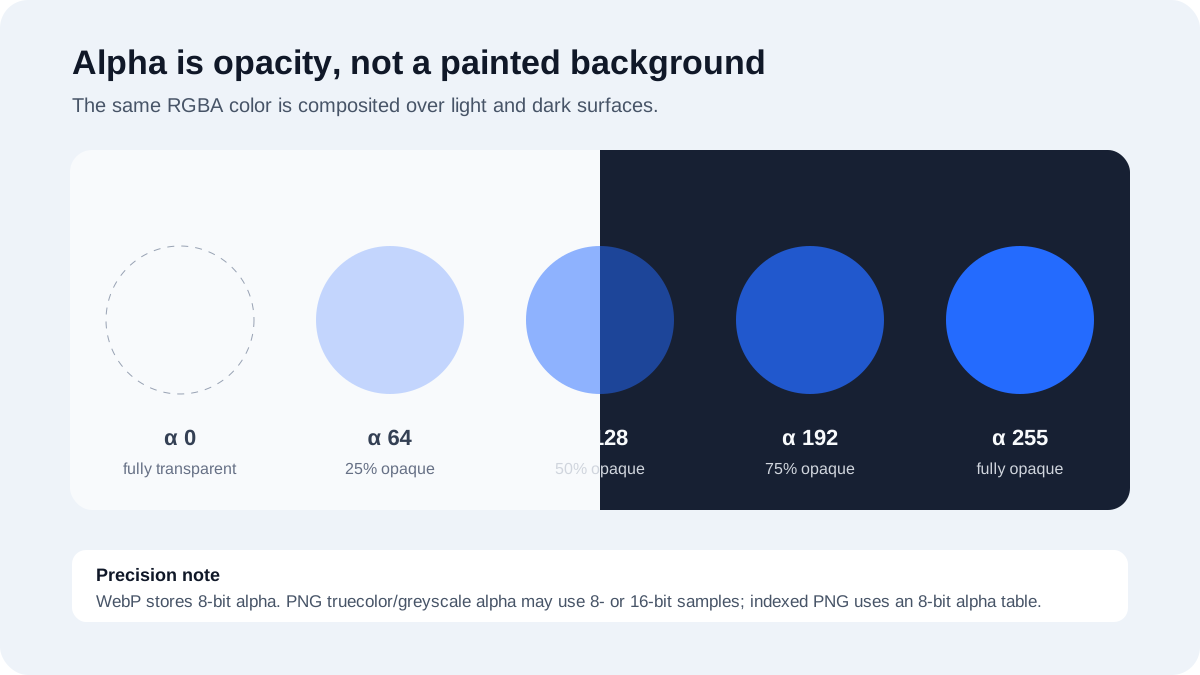
What an alpha value actually represents
For a common 8-bit alpha channel, the value ranges from 0 to 255. A value of 0 contributes no visible foreground color, 255 is fully opaque, and a value around 128 is approximately half opaque. The viewer combines that foreground pixel with whatever is behind it. This operation is called compositing.
It is more precise to say “approximately half opaque” than to treat 128 as a universal visual result. Correct compositing also depends on the color space and the implementation. Google’s WebP container specification, for example, specifies 8-bit RGBA channels and says animation alpha blending should account for the color profile and be performed in linear color space. Applications do not all handle color data identically, so two viewers can occasionally render an edge differently even when the stored alpha samples match.
PNG supports more than 256 alpha values
The statement that PNG always has only 256 transparency levels is incomplete. The PNG Specification (Third Edition) permits truecolor-with-alpha and greyscale-with-alpha images with either 8-bit or 16-bit samples. That means an 8-bit alpha channel has 256 possible stored values, while a 16-bit alpha channel has 65,536. Indexed-color PNG is different: it uses an 8-bit alpha table associated with palette entries.
WebP’s container uses 8-bit alpha. Moving a 16-bit-per-channel PNG into an 8-bit WebP workflow can therefore reduce precision even if the WebP is encoded losslessly. Moving in the other direction—from an 8-bit WebP to a 16-bit PNG—does not manufacture new precision; it only maps existing decoded values into a larger numerical range.
Transparency, background removal and file format are different jobs
These three operations are often mixed together:
- Background removal identifies the subject and creates a mask. This may be done manually, with selection tools, or by a segmentation model.
- Alpha storage records the mask as transparent or partially transparent samples in a format that supports them.
- Compositing displays those samples over a chosen background.
Changing a filename to .png, or merely exporting an opaque canvas as PNG, does not perform the first step. If every stored alpha value is fully opaque, the result will still have a solid background. Conversely, a transparent file can look white in a viewer whose canvas is white even though the file contains no white backdrop.
Straight alpha, premultiplied alpha and edge halos
PNG stores unassociated, often called straight, alpha: the RGB samples are not already multiplied by the alpha value. WebP’s documented RGBA blending also uses non-premultiplied channels. Graphics APIs may temporarily use premultiplied alpha in memory because it makes compositing efficient. Problems appear when an application treats straight data as premultiplied, or the reverse.
A common symptom is a pale or dark fringe around a cut-out subject. The edge pixels are partly transparent, but their hidden RGB values may have been matted against white or black. When the image is later placed over a different background, those colors leak into the anti-aliased edge. The format extension is not the root cause; the mask, matte and export path are.
Hidden RGB under fully transparent pixels
Fully transparent pixels are invisible, yet they can still carry RGB values. Some lossless WebP encoders alter those invisible RGB values to improve compression unless an “exact” option is enabled. Google documents this behavior in its WebP FAQ. This distinction matters for workflows that later reveal, dilate or filter transparent edges. It usually does not matter for ordinary compositing, where alpha zero makes the pixel invisible.
Original test: did WebP-to-PNG preserve decoded alpha?
We tested this question in a reproducible synthetic corpus rather than assuming that all format conversions behave the same way. The dataset contains 80 procedurally generated RGBA source images across flat UI, line art, gradients, soft transparency and photo-like texture. Each source was encoded as lossless WebP and as lossy WebP at qualities 50, 80 and 95, producing 320 WebP cases.
Pillow 12.2.0 with libwebp 1.6.0 decoded every WebP to RGBA. The same decoded buffer was then encoded as PNG with a fixed compression level of 6. We compared the decoded WebP and decoded PNG pixel by pixel. All 320 conversions had zero changed RGBA pixels, and all 320 had zero changed alpha samples.
| Test measure | Result in this corpus | What it means |
|---|---|---|
| WebP cases converted | 320 | 80 source images × four WebP modes |
| Pixel-identical WebP decode → PNG | 320/320 (100%) | The PNG reproduced the decoded WebP RGBA buffer in this pipeline |
| Exact alpha after conversion | 320/320 (100%) | No decoded alpha sample changed |
| Source preserved by lossy WebP | No | PNG cannot restore detail already discarded by lossy WebP encoding |
Read the protocol, confidence intervals and limitations in the complete WebP-to-PNG benchmark report. The finding supports a narrow statement: this pipeline preserved the decoded pixels and alpha for this corpus. It is not a guarantee that every converter, editor or upload service will do so.
How to preserve transparency when converting WebP to PNG
- Check the source on two backgrounds. Preview it over both light and dark colors. This reveals flattened backgrounds and edge mattes that a checkerboard can hide.
- Confirm that the source really has alpha. A WebP file can be fully opaque. The fact that the format supports transparency does not mean a particular file uses it.
- Avoid screenshots. A screenshot captures the viewer’s background and creates an opaque rectangle.
- Use a converter that keeps RGBA data. The WEBP to PNG converter processes supported files locally and retains supported alpha in the PNG output.
- Inspect the result outside the converter. Open the PNG in an editor, verify the alpha channel, and test it on the destination where it will be used.
- Keep the original. Conversion may remove metadata or change color-profile handling even when pixels and alpha survive.
The converter accepts up to 20 WebP files at a time, with a 50 MB maximum for each file. It produces static PNG output. For animated WebP, the default is the first frame; where full frame decoding is supported, the alternate option exports numbered PNG frames and a timing manifest in a ZIP. It does not create APNG.
Why a transparent image turns white or black
| Symptom | Likely cause | Useful check |
|---|---|---|
| Solid white rectangle | The background was never removed, the image was flattened, or the destination converted it to JPEG | Reopen the source in an editor and inspect the alpha channel |
| Black background only in one app | The app is displaying transparent pixels over a black canvas or mishandling alpha | Test the same file in another current viewer |
| White or dark fringe | Edge RGB was matted against a different background or alpha was interpreted incorrectly | View at 200–400% over contrasting colors |
| Jagged edge | The mask contains only fully transparent and fully opaque pixels | Inspect whether intermediate alpha values exist |
| Transparency disappears after posting | The platform resized, recompressed or flattened the file | Download the served copy and inspect that file, not the local original |
Which format should hold a transparent asset?
Use PNG when lossless decoded pixels, broad editing compatibility, or 16-bit samples matter. Use WebP when efficient web delivery and 8-bit alpha are appropriate. Consider AVIF when your tested pipeline benefits from its compression, HDR or wide-color capabilities, but provide a fallback where required. Use SVG for genuinely vector artwork such as logos and icons rather than rasterizing it prematurely. GIF transparency is limited compared with full alpha and is a poor default for soft edges.
For a wider decision framework, see when to choose PNG, WebP or JPEG. If the asset will be animated, use the separate WebP vs APNG vs GIF guide.
Frequently asked questions
Does PNG always support transparency?
The PNG format supports several forms of transparency, but an individual PNG can be fully opaque. The encoder must write an alpha channel or applicable transparency information, and the source must contain transparency to preserve.
Can converting WebP to PNG improve a transparent edge?
Not by itself. PNG can store the decoded edge without further lossy compression, but it cannot restore RGB detail or alpha precision that was already lost. Repairing a halo normally requires returning to the layered source or rebuilding the mask.
Is the checkerboard part of my image?
Usually not. It is a user-interface convention for showing transparent areas. If you can see the squares after exporting and opening the image elsewhere, they were likely baked into the pixels rather than displayed as a preview.
Does PNG preserve metadata from WebP?
Do not assume so. Pixel and alpha preservation are separate from EXIF, XMP, ICC profiles and other metadata. The published benchmark intentionally did not test metadata transfer. Keep the original and validate any color-critical or archival workflow separately.
An export checklist for design teams
A repeatable checklist prevents the same transparency bug from being diagnosed differently by every designer or developer. Before delivery, record the source document, export application and version, target dimensions, color mode, bit depth, alpha requirement and intended destination. Save one test asset with difficult edges—hair, a soft shadow, a glow and a fully transparent region carrying nonzero RGB—so future tool changes can be compared with the same input.
- Preview the source and export over white, black and a saturated color.
- Check whether the file is truly RGBA rather than an opaque RGB image displayed on a checkerboard.
- Zoom in on partially transparent edges and compare them with the layered master.
- Record whether resizing occurred before or during export, because resampling can change edge pixels.
- Open the delivered file in the destination application and download any processed copy for a second inspection.
- Retain checksums when exact file identity matters; a matching appearance does not prove that the file was untouched.
For web assets, also verify the HTML and CSS context. A parent element can paint a background, an optimization plugin can create a JPEG derivative, and a content-delivery service can negotiate a different format. Inspect the final network response rather than diagnosing only the local export. If a destination deliberately flattens transparency, add a controlled background yourself so the edge color is predictable.