

A batch can fit comfortably on disk and still overwhelm a browser tab. The reason is simple: WebP and PNG files are compressed containers, while image processing usually needs decoded pixels. For a common eight-bit RGBA working surface, the first useful estimate is width × height × four bytes—not the file size shown in the file picker.
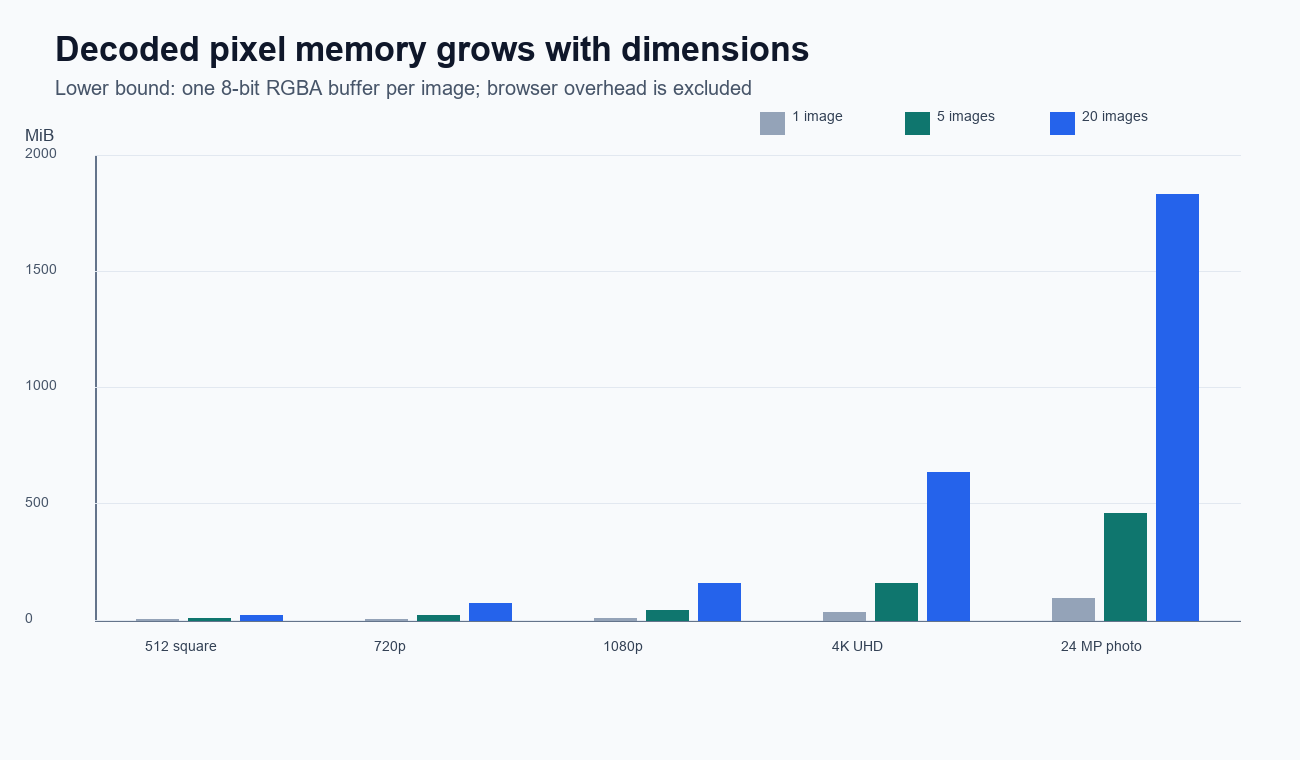
The short version
- A compressed file’s megabytes do not predict its decoded memory footprint.
- An RGBA8 estimate is width × height × 4 bytes for one pixel surface.
- Real peak memory can be higher because input bytes, decoded images, canvas backing stores, encoder buffers, output blobs, previews and ZIP data may overlap.
- Process files sequentially or with tightly limited concurrency on constrained devices.
- At WEBP to PNG Tools, the product limit is 20 files per batch and 50 MB per file; that is an acceptance limit, not a guarantee that every permitted batch fits every device.
- Animated all-frame exports are a separate, higher-risk workload. Start smaller than for static images.
Why file size is the wrong first estimate
WebP compresses repeated or predictable image information. Two files with the same dimensions can therefore have radically different byte sizes: a flat icon may compress very well, while noisy photographic texture may not. After decoding, both may require a pixel surface with the same width, height and channel layout.
The browser also does not simply replace the compressed WebP with a PNG. During conversion, several representations can coexist:
- the selected WebP
FileorBlob; - a decoded bitmap;
- a canvas or another destination pixel surface;
- temporary decoder and encoder memory;
- the encoded PNG
Blob; - a preview image and its backing resources;
- for batch download, ZIP-building buffers or archive data.
Some browsers can reuse or avoid copies in particular paths; others may allocate GPU resources, padded rows or additional color-conversion buffers. These details are implementation-dependent. Pixel arithmetic is best treated as a transparent lower-order planning estimate, not a promise of the exact tab footprint.
The RGBA8 calculation
For a working surface with red, green, blue and alpha channels at eight bits per channel:
surface bytes = width × height × 4
surface MiB   = surface bytes ÷ 1,048,576
The distinction between MB and MiB matters. Product file-size limits are commonly expressed in decimal megabytes, while memory calculations are often displayed in binary mebibytes. The table below uses MiB and shows one RGBA8 surface only.
| Pixel dimensions | Pixels | One RGBA8 surface | Two same-size surfaces |
|---|---|---|---|
| 1,920 × 1,080 | 2,073,600 | 7.91 MiB | 15.82 MiB |
| 2,560 × 1,440 | 3,686,400 | 14.06 MiB | 28.13 MiB |
| 4,000 × 3,000 | 12,000,000 | 45.78 MiB | 91.55 MiB |
| 6,000 × 4,000 | 24,000,000 | 91.55 MiB | 183.11 MiB |
| 8,000 × 6,000 | 48,000,000 | 183.11 MiB | 366.21 MiB |
A 4,000 × 3,000 image therefore needs about 45.78 MiB for one such surface. If a decode surface and a separate canvas coexist, the simple two-surface estimate is about 91.55 MiB before other allocations. Twenty images of those dimensions held as one RGBA8 surface each would total about 915.5 MiB; two full surfaces per image would be about 1.79 GiB. A sequential queue does not need all of those pixel surfaces live at once.
What this calculation does not assume
It does not assert that a particular browser allocates exactly two surfaces, that every browser uses RGBA8 internally, or that a given phone has a fixed tab limit. Those require instrumented tests on named devices and browser builds. The table exists so readers can reproduce the arithmetic and understand the scale without an unsupported peak-memory anecdote.
Why the 50 MB input limit is not a memory limit
WEBP to PNG Tools accepts up to 20 WebP files in one batch and up to 50 MB per file. Those values define what the interface accepts. They do not mean a 50 MB file consumes 50 MB while decoded, and they do not guarantee that the maximum theoretical batch will complete on every mobile device.
Consider two opposite cases:
- A very large, visually simple image may be a small WebP on disk but expand to a large pixel surface.
- A smaller-dimension, noisy image may have a larger compressed file yet require fewer decoded pixels.
For memory planning, inspect dimensions and animation frame count. For transfer or storage planning, inspect compressed bytes. They answer different questions.
Animated WebP changes the problem
An animated file contains multiple frames and timing information. A naive all-frames estimate would multiply a full-frame surface by the number of simultaneously retained frames:
frame-surface bytes = width × height × 4
retained-frame bytes = frame-surface bytes × retained frame count
Actual animated decoders may use frame rectangles, compositing buffers, previous-frame dependencies and implementation-specific reuse, so this is not an exact decoder model. It does reveal why an all-frames task can be much larger than a first-frame task.
In the converter, standard animated WebP conversion exports the first frame. Where the browser supports the required frame-extraction path, the tool can export every frame as PNG files in a ZIP archive. On low-RAM devices, test all-frame mode with one small animation before adding more files. The 20-file batch limit should not be treated as a recommended animated workload.
A low-RAM batch strategy that follows the data
1. Sort by dimensions, not just bytes
Record width × height for every image. Put extreme-dimension images and animations in a separate group. A batch of small icons is not comparable to a batch of 24-megapixel photographs, even when the compressed totals match.
2. Estimate one- and two-surface costs
Calculate width × height × 4, then double it as a simple illustration of two overlapping full-size surfaces. This is not a browser measurement; it is a screening tool. If the arithmetic is already uncomfortably large, use fewer concurrent files.
3. Start with a calibration batch
On an unfamiliar device, convert one representative file first. If that succeeds and the interface remains responsive, try a small batch. Increase gradually. There is no defensible universal number such as “mobile supports five files”; browser, operating system, available memory, image dimensions and other active apps all matter.
4. Avoid overlapping heavy applications
Close unused image editors, games and memory-heavy tabs before a large local conversion. This is operational advice, not a claim that the converter can inspect or reserve system memory.
5. Download and clear completed outputs
Encoded PNG blobs and preview object URLs can remain live while results are displayed. Download completed work, clear the batch when possible and begin a new group. Application code should revoke object URLs and close bitmap resources when the interface no longer needs them.
6. Treat a tab reload as a capacity signal
If the tab reloads, freezes or the conversion fails, reduce the file count and start again with the largest item alone. Repeatedly retrying the same maximum batch does not create more available memory.
Worked batch examples
These examples use dimensions only. They are planning calculations, not browser measurements.
Ten Full HD screenshots
One 1,920 × 1,080 RGBA8 surface is 7.91 MiB. Ten surfaces total 79.10 MiB; two full-size surfaces per image would total 158.20 MiB. A sequential implementation can keep the active full-size surface count lower, although compressed inputs and retained results still consume resources.
Five 24-megapixel photographs
One 6,000 × 4,000 RGBA8 surface is 91.55 MiB. Five simultaneous surfaces total 457.76 MiB; two per image would be about 915.53 MiB. This batch contains fewer files than the screenshot example but represents a much larger pixel workload.
One 4K animation with 60 retained full frames
A 3,840 × 2,160 RGBA8 surface is 31.64 MiB. Sixty simultaneous full-frame surfaces would be about 1.85 GiB before output PNGs or ZIP data. Real animated decoders may retain fewer full frames or use partial rectangles, so this is a conservative scale illustration—not a prediction of the tool’s allocation. It shows why first-frame and all-frame exports require different batch advice.
Failure messages should name the next action
“Conversion failed” leaves the visitor guessing. A batch converter should distinguish an unsupported or corrupt file from a resource-pressure failure when the browser exposes enough information to do so. Useful recovery guidance includes: retry this file alone, choose first-frame export, reduce the number of files, close other tabs, or use an image with smaller dimensions. Never claim an exact RAM shortage unless it was actually measured.
Progress reporting also matters. Show the current item and total completed items, preserve already completed downloads where practical, and avoid restarting successful jobs after one later file fails. A bounded queue improves not just peak-memory behavior but also the clarity of per-file error handling.
Implementation pattern for a batch converter
For developers, the safest general pattern is a bounded queue with explicit cleanup:
for (const file of selectedFiles) {
  const bitmap = await createImageBitmap(file);
  try {
    // Size the destination only for this image.
    // Draw, encode to PNG Blob, expose result.
    // Yield/update progress between jobs as needed.
  } finally {
    bitmap.close();
    // Revoke object URLs after the UI no longer needs them.
  }
}
This illustration deliberately omits application-specific error handling, animation decoding and output retention. It demonstrates lifetime boundaries, not a drop-in converter. createImageBitmap() returns a promise, ImageBitmap.close() disposes its graphical resources, and the File API defines object-URL creation and revocation. Whether the decoder work itself runs off the main thread is browser-dependent and should not be inferred from the promise alone.
A reproducible device test—without pretending we ran it
If you want to publish device results, use a named protocol instead of a story about an unspecified phone. Record:
- device model, RAM tier, operating system and exact browser version;
- power state and whether other applications were closed;
- fixture SHA-256, dimensions, compressed size, animation frame count and export mode;
- batch size and order;
- success, failure, tab reload and visible responsiveness;
- every timing run rather than only the fastest;
- the memory tool used and what it includes.
JavaScript heap figures do not necessarily include native decoder memory, GPU allocations or every browser process. A result should name the measurement boundary. Until those tests exist, byte/pixel arithmetic and documented product limits are more reliable than invented mobile rankings.
What the 2026 benchmark contributes
Our synthetic WebP-to-PNG benchmark publishes deterministic fixtures at 512 × 512 and 1,280 × 720, raw size results, reference-pipeline timings, code, environment details and checksums. Those fixtures are useful for a reproducible browser test. The published timings themselves do not measure browser memory: inputs were preloaded, the pipeline used Pillow/libwebp on one Windows environment, and page load, browser UI, network and disk I/O were excluded.
Methodology and limitations
The numerical table in this article is exact arithmetic for tightly packed RGBA8 surfaces: width × height × four bytes, converted to MiB using 1,048,576 bytes. It is not an observation of Chrome, Safari, Firefox, Edge, Android or iOS memory. Browser decoders may use different internal layouts, padding, GPU resources, copies and animation strategies. No mobile-device success rate, crash threshold or measured peak is claimed. Product limits and conversion behavior were verified separately from the arithmetic.
Sources and verification ledger
- W3C File API — File and Blob representations, asynchronous reads, blob URLs and their lifecycle.
- MDN: createImageBitmap() — accepted image sources and promise-based bitmap creation.
- MDN: ImageBitmap — dimensions, worker exposure and explicit
close(). - MDN: canvas toBlob() — PNG blob creation and browser-managed memory or disk storage.
- W3C PNG Third Edition — normative PNG format reference.
- Google WebP documentation — WebP format overview and compression modes.